Register as a new P2i service supplier
Note After registering the organisation, refer to Managing users as P2i only permits one P2i Supplier Administrator within a Funded Organisation.
Engage with the Register a Funded Organisation guided learning simulation or view the Supplier Registration tutorial video
To register as a new service supplier:
-
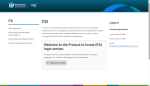
Access the P2i login service.
-
Click
 .
.
-
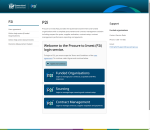
Click
 .
.
-
Click
 at the Supplier/Staff Login screen.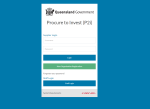
-
Select
 and click
  .
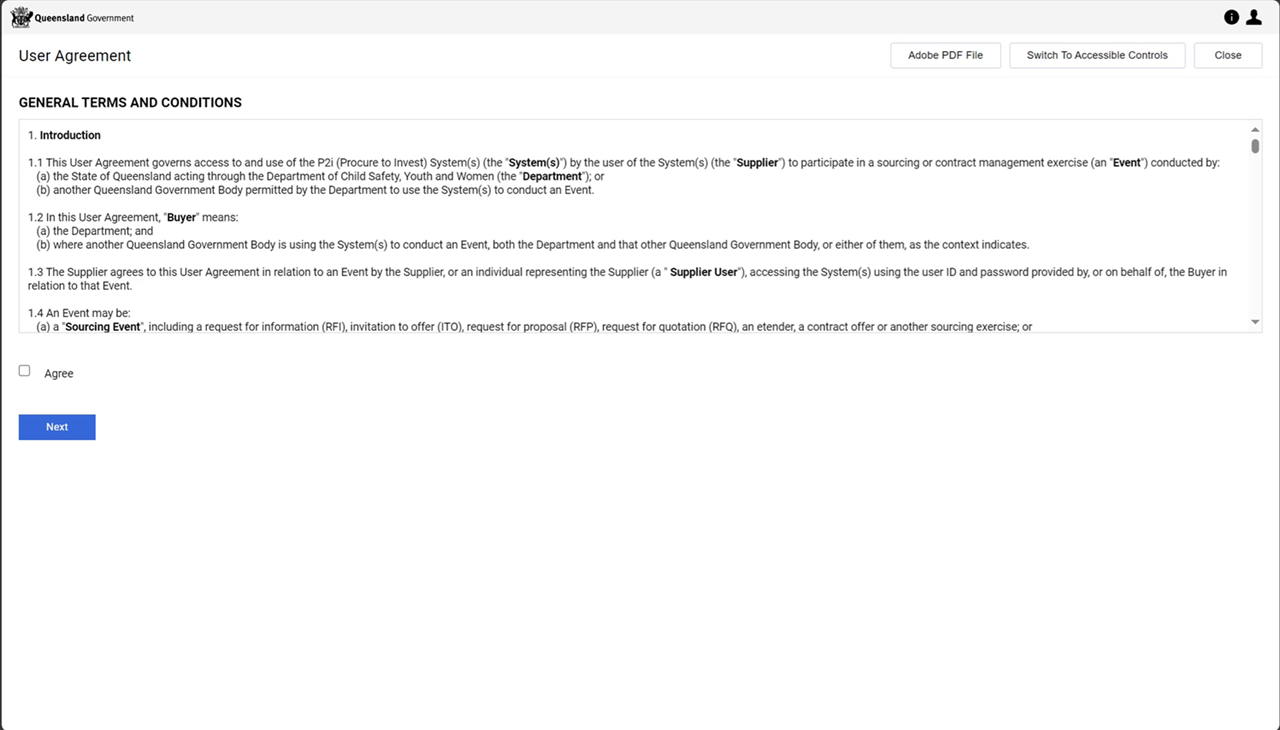
.Warning Read the User Agreement and select
.If you do not select
and you click , you are prompted to inidcate you have read and accepted the User Agreement.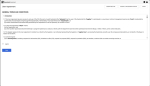
-
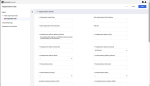
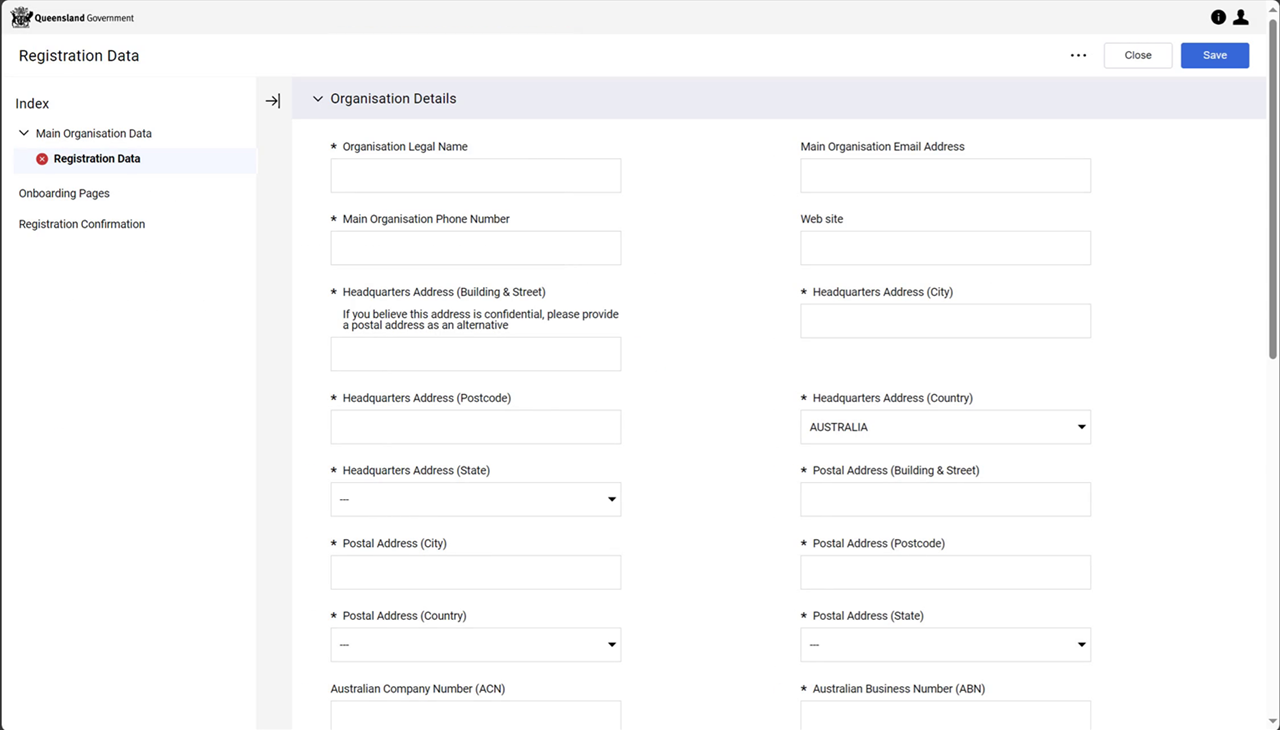
Enter your Organisation Details.
Warning
-
Confidential addresses should not be entered.
-
All fields marked with an asterisk * must be completed.
-
The ABN field has validation help. Click
 .
.
-
-
Scroll down to the System Administrator Details section and enter your System Administrator details.
Warning The email address entered for the System Administrator will be used for access to the site and for all communications from the Departments. Please ensure address is enter correctly as an email is sent to it.
Tip It is recommended to use an email address as the Username.
Warning DO NOT add spaces when typing the Username.
-
Click
 when you have completed the registration form.
 -
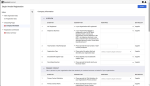
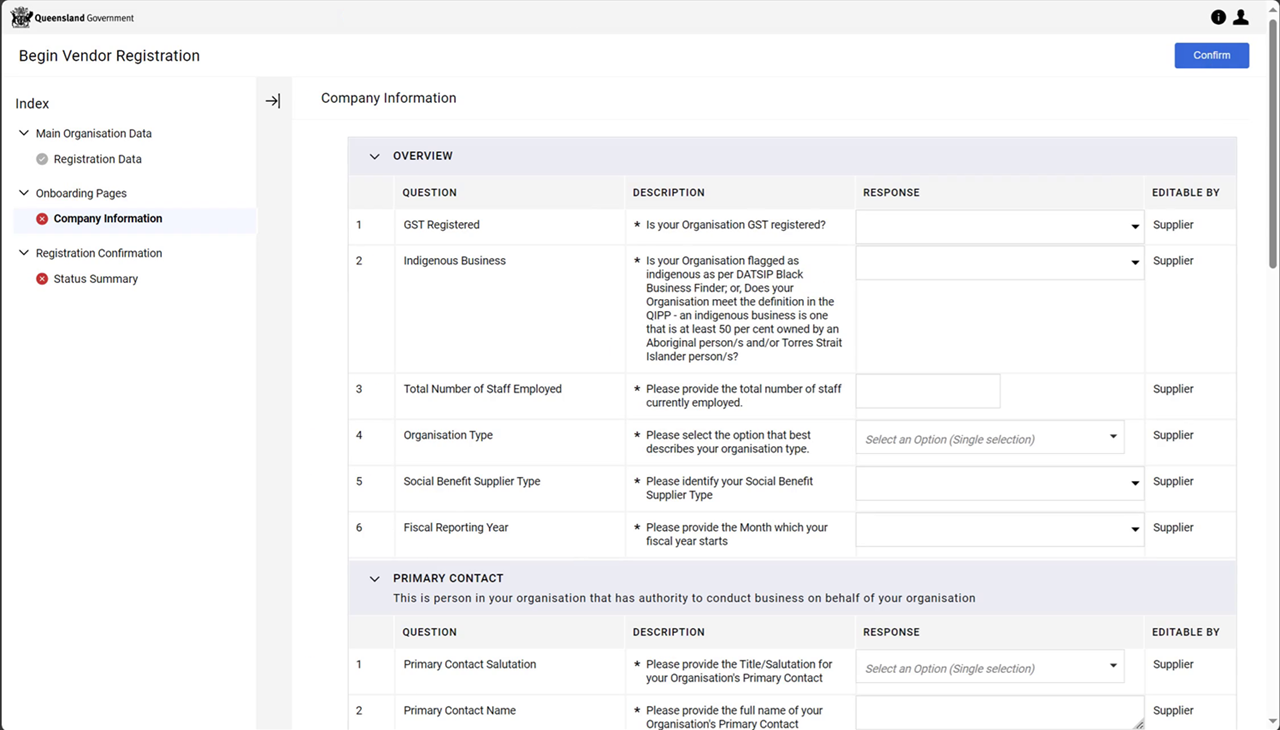
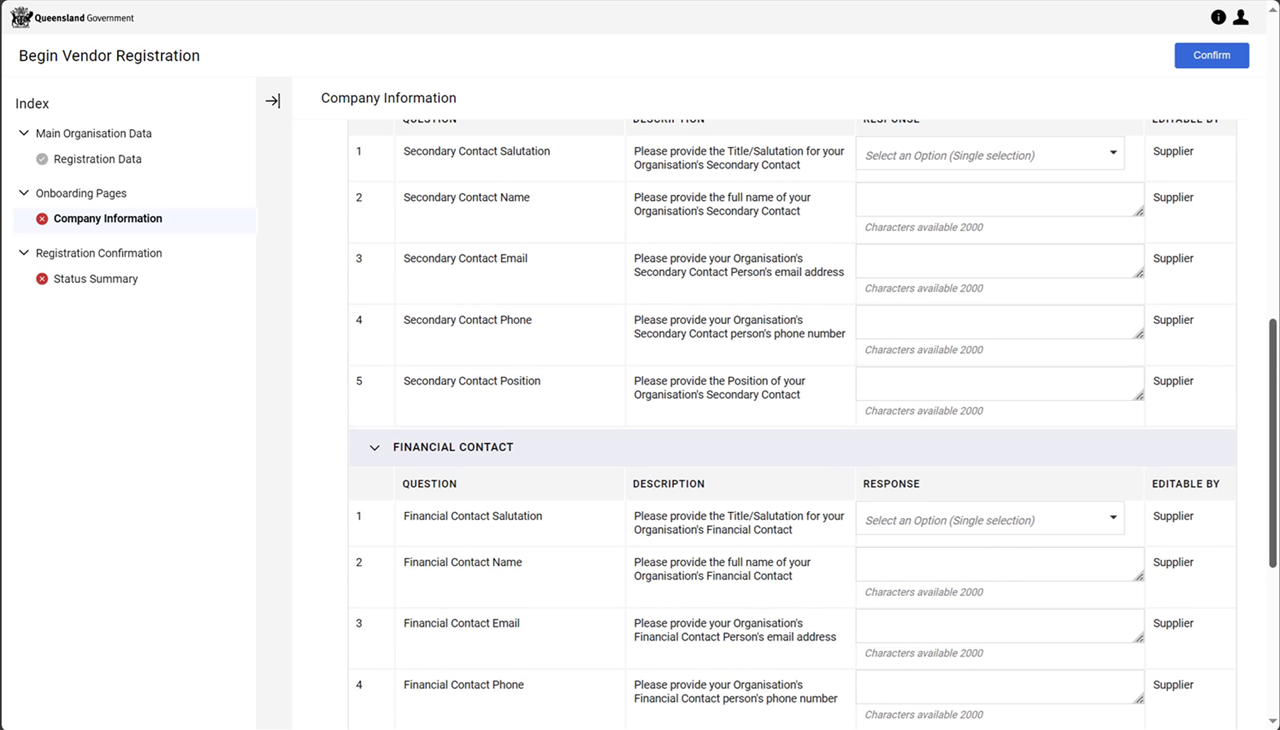
Complete the Company Information details.
-
Scroll to the OVERVIEW section and complete the questions.
-
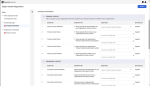
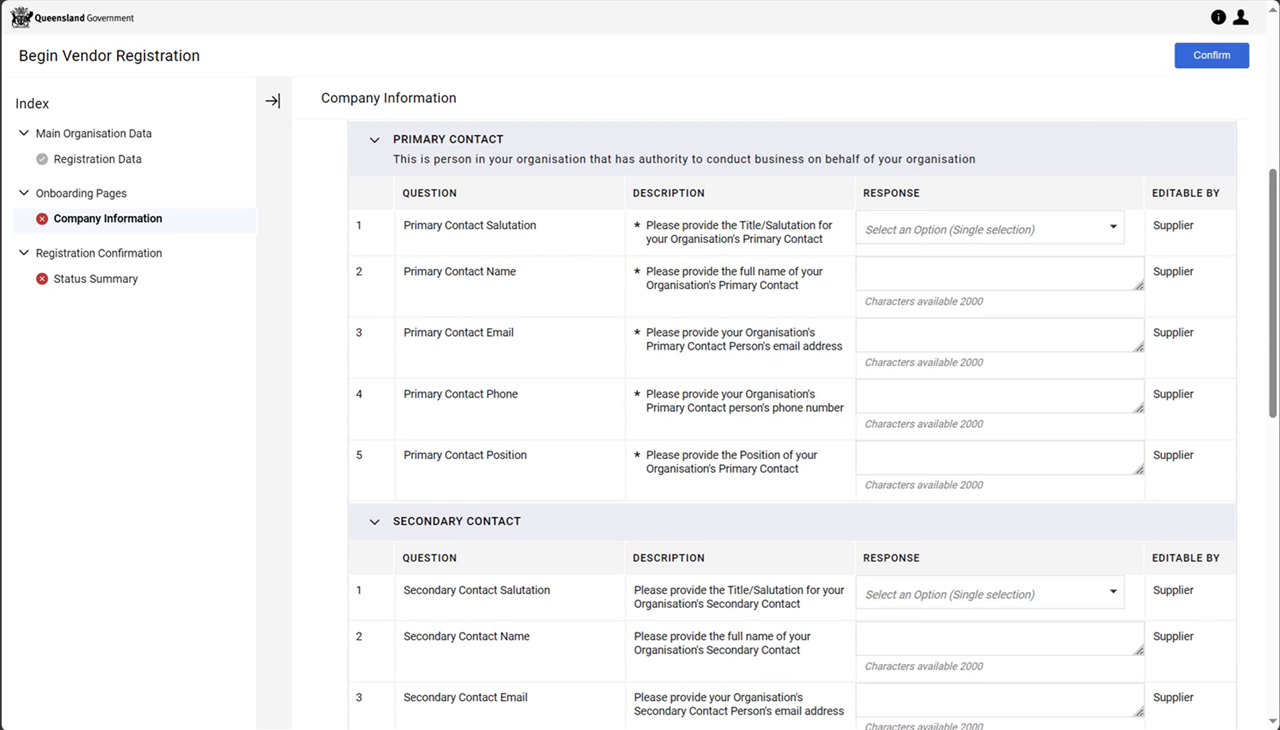
Scroll to the PRIMARY CONTACT section and complete the questions.
-
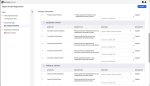
Scroll to the SECONDARY CONTACT section and complete the questions
-
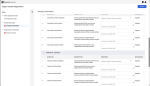
Scroll to the FINANCIAL CONTACT section and complete the questions
-
-
After answering all the questions, click
 .
. -
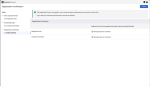
The Registration Confirmation screen will display.
-
Click
 .
.



Note The System Administrator receives an email notification confirming successful P2i registration and a link to the login page and (temporary) password.
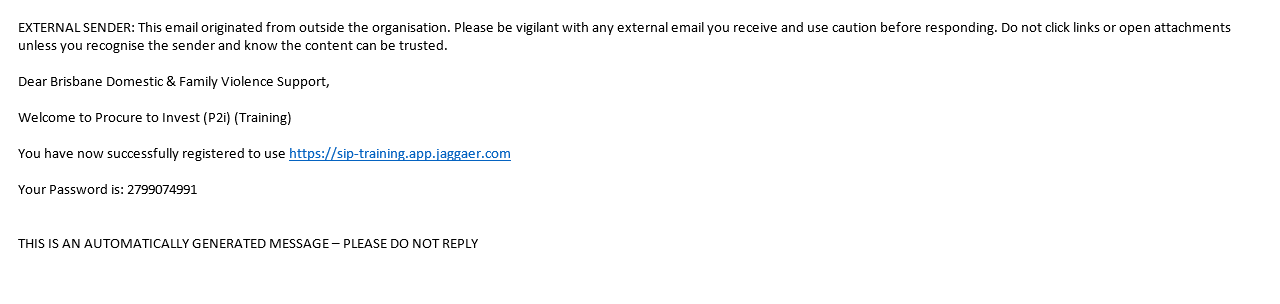

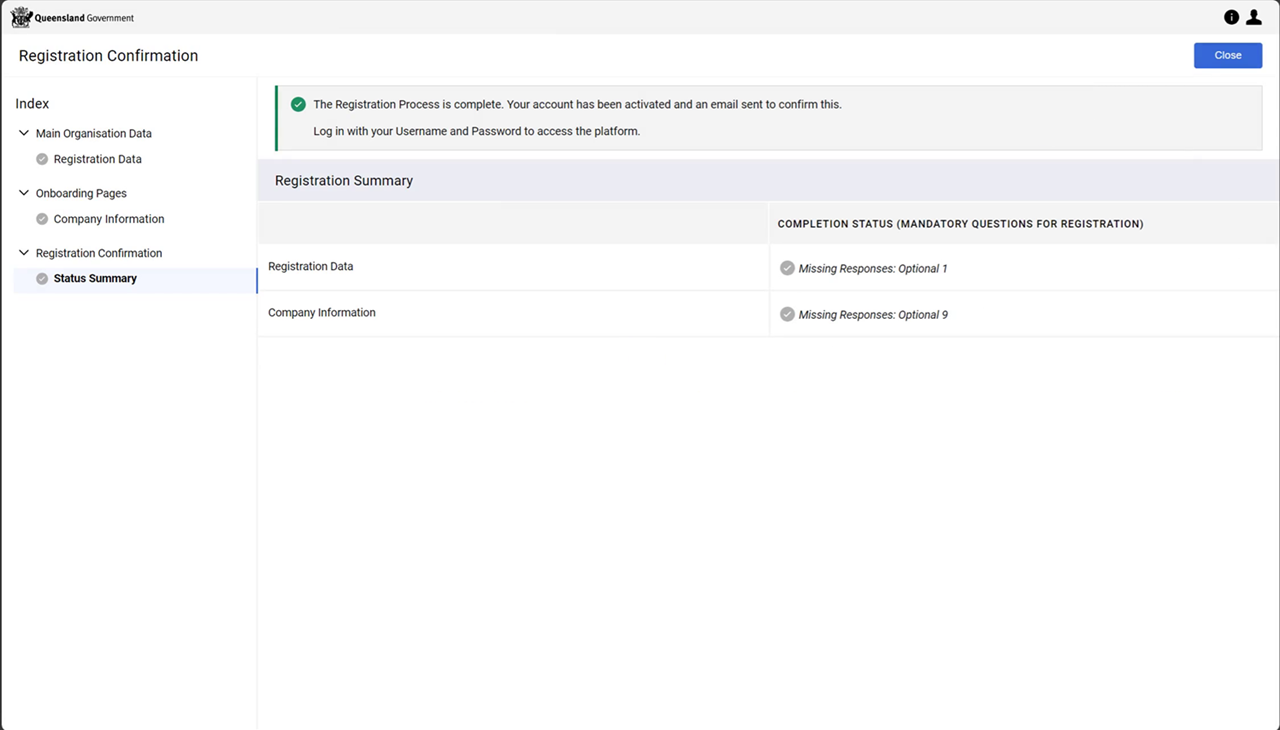
Tip A second email notification is sent to confirm the activation of the account. The notification contains a link to the login page and username.